Parameter Sampling and Calibration
Overview
Parameter sampling and calibration in JAMS can be accomplished using the integrated Optimization Assistant (OPTAS) module. The purposes range from parameter calibration to sensitivity and uncertainty analyses, offering both directed and undirected sampling methods.
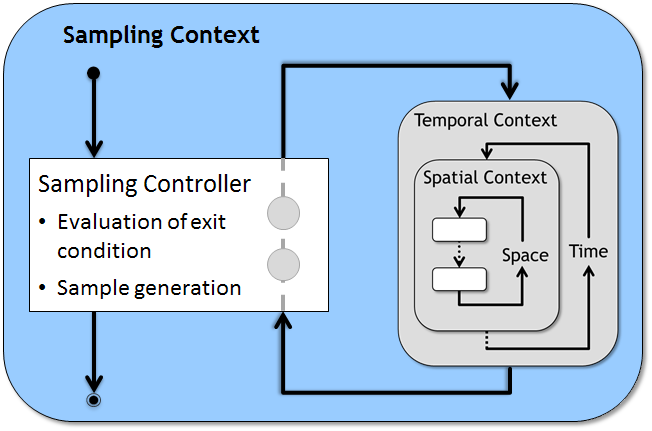
General Approach
The general approach for setting up a parameter sampling procedure in JAMS is independent of the chosen methods or the purpose of the sampling. The original model (grey box) is wrapped inside a new sampling context (blue box). An embedded sampling controller is responsible for repeatedly choosing new parameter values and running the model with the chosen values. Depending on some pre-defined break condition, the controller will stop the sampling procedure, e.g. once a maximum number of samples was tested.
OPTAS guides users through converting any JAMS model into a new model which allows parameter sampling with the original model, thereby wrapping the original model into a sampling context. This conversion is done in two steps:
- Setting up a model efficiency calculation
- Setting up the sampling controller and wrapping the original model within
Configuration Steps
After the first step has been done, open your model to be sampled in the JAMS builder and select the Model -> Configure Efficiencies menu entry. The efficiency configuration dialog will open.
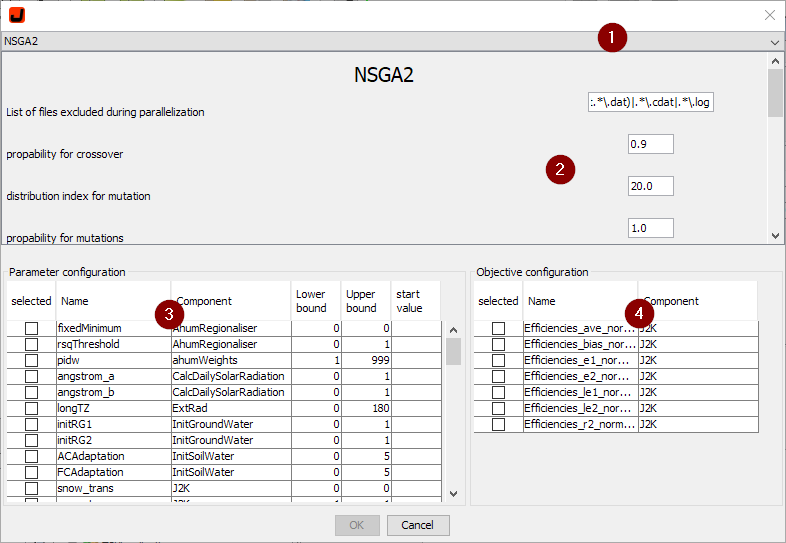
To setup a new or to change an existing efficiency calculation, the following steps are required:
- Select the sampling strategy that you want to use from the drop-down box (1)
- Set up the parameters related to the chosen sampling procedure (2). Among others, these may include the maximum number of sampling iterations or the number of parallel execution threads.
- Mark the parameters to be sampled, their lower/upper boundaries and their start value (optional) (3)
- Mark the objectives to be used during sampling (4). For single-objective, directed procedures (e.g. Shuffled Complex Evolution — SCE), only the first objective will be used.
Finally, the setup has to be confirmed by pressing the OK button. As a result, the original model will be transformed into a “sampling model” by wrapping everything into a sampling context as described above. Since it will be difficult to reconstruct the original model from the sampling model, make sure that you save the sampling model under a new name.
Execution and Output
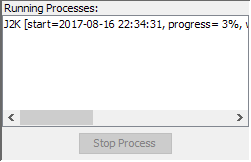
In order for a single sampling step to run as quickly as possible, all graphical components are automatically removed from the model. Running the model will therefore create no visible output. The only indication that the model was started is a new entry in the “Running processes” window in the lower left part of the JAMS builder. From here, a single model can easily be stopped. Any output of the model can be inspected by selecting Logs -> Info/Error Log… from the menu. The file output from a model can have a major impact on runtime of the sampling procedure. Therefore, please make sure to check the output from your model (Model -> Configure Model Output) and disable any that is not required during parameter sampling/optimization.